

Editing Emails
This page describes how to use Edit in Outlook to edit and send Business Central document emails via Microsoft Outlook.
Basic Workflow
Step-by-Step Process
1. Document Selection
- Open a Business Central document (e.g. Sales Quote, Invoice, Order)
- Click on "Send Email" action in the ribbon
- Email dialog opens
2. Activate Edit in Outlook
- In the email dialog:
- Select recipients
- Choose email template (optional)
- Click on "Edit in Outlook" button
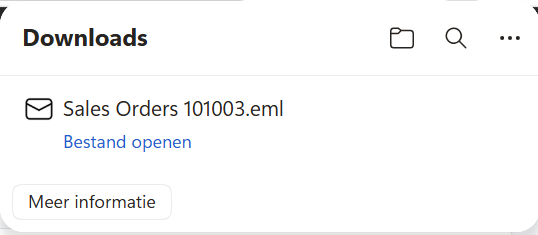
- Browser starts download of .eml file
- Wait until download completes
3. Outlook Editing
- Open downloaded .eml file (double-click)
- Outlook opens with pre-populated email:
- Document as PDF attachment
- Template content in email body
- Recipient information filled in
- Edit email as desired:
- Adjust subject
- Add personal text
- Add extra attachments
- Adjust formatting
4. Sending
- Review your email
- Click "Send" in Outlook
- Email is sent via your personal Outlook account
- Email appears in your Outlook "Sent Items"
Supported Documents
Sales Documents
| Document Type | Business Central Page | Available Actions |
|---|---|---|
| Sales Quotes | Sales Quote (41, 42, 43) | Send Email → Edit in Outlook |
| Sales Orders | Sales Order (44, 45, 46) | Send Email → Edit in Outlook |
| Sales Invoices | Sales Invoice (132, 133, 134) | Send Email → Edit in Outlook |
| Posted Sales Invoices | Posted Sales Invoice (132) | Send Email → Edit in Outlook |
| Sales Credit Memos | Sales Credit Memo (114, 115) | Send Email → Edit in Outlook |
Purchase Documents
| Document Type | Business Central Page | Available Actions |
|---|---|---|
| Purchase Quotes | Purchase Quote (49, 50, 51) | Send Email → Edit in Outlook |
| Purchase Orders | Purchase Order (52, 53, 54) | Send Email → Edit in Outlook |
| Purchase Invoices | Purchase Invoice (122, 123, 124) | Send Email → Edit in Outlook |
| Purchase Credit Memos | Purchase Credit Memo (124, 125) | Send Email → Edit in Outlook |
Warehouse Documents
| Document Type | Business Central Page | Available Actions |
|---|---|---|
| Warehouse Shipments | Warehouse Shipment (7337) | Send Email → Edit in Outlook |
| Posted Whse. Shipments | Posted Whse. Shipment (7348) | Send Email → Edit in Outlook |
User Interface
Business Central Email Dialog
When you select "Send Email", you see:

Edit in Outlook Download Prompt
After clicking "Edit in Outlook":
Outlook Compose Window
The .eml file opens in Outlook with:

Email Editing Features
Text Adjustments
In Outlook you can: - Change subject line - Adjust body text: - Add personal note - Modify template text - Adjust formatting (bold, italic, colors) - Add lists - Insert links
Attachment Management
- View existing attachments (PDF document)
- Add extra attachments:
- Additional documents
- Images
- Specifications
- Contracts
- Remove attachments (if needed)
- Rename attachments
Adjust Recipients
- Expand To field with additional recipients
- Add Cc recipients
- Bcc for hidden copies
- Validate addresses via Outlook address book
Signature & Formatting
- Personal signature is automatically added
- Company branding preserved from template
- HTML formatting fully available
- Rich text editing with Outlook's editor
Advanced Features
Template Personalization
Customize templates per situation:
<!-- Before sending -->
<p>Dear %CUSTOMER_NAME%,</p>
<p>Please find attached %DOCUMENT_TYPE% %DOCUMENT_NO%.</p>

<!-- After editing in Outlook -->
<p>Dear John Smith,</p>
<p>Following our conversation today, please find attached
our revised Sales Quote SQ001 with the updated pricing.</p>
Bulk Email Editing
For multiple documents:
- Use Edit in Outlook for first document
- Save as template in Outlook
- Apply template for subsequent documents
- Personalize each message
Follow-up Management
- Set reminder in Outlook for follow-up
- Categorize emails for organization
- Flag for follow-up with specific dates
- Track email delivery and read receipts
Best Practices
Template Management
- Develop standard templates for each document type
- Test templates with different scenarios
- Train users in template customizations
- Maintain consistency in company branding
Personal Workflow
- Check email content before sending
- Verify recipient addresses are correct
- Add personal touch where appropriate
- Archive sent items systematically
Quality Control
- Preview PDF attachment before sending
- Spell check your customized text
- Test links if added
- Verify formatting on different devices
Mobile Access
Outlook Mobile
Edit in Outlook also works via mobile workflow:
- Download .eml on desktop/laptop
- Sync via OneDrive or email to yourself
- Open in Outlook Mobile
- Edit and send on the go
Cross-platform
- Windows: Native Outlook integration
- Mac: Outlook for Mac support
- Web: Outlook Web Access compatibility
- Mobile: iOS and Android Outlook apps
Next steps: - Supported Versions - Compatibility info - Limitations - What to expect - FAQ - Frequently asked questions